What is Chi Square Goodness Of Fit ?
When to use Chi Square Goodness Of Fit?
- Use when your response variable is categorical and you want to test whether its observed distribution matches an expected or theoretical distribution.
- Use to verify whether a process produces defects or outcomes in expected proportions across categories such as shift, machine, or product type.
- Use when you have a theoretical model or prior distribution and want to test how well your actual data conforms to it.
- Use in sampling audits, compliance checks, and quality reviews where expected frequencies are known from specifications or historical data.
Guidelines for correct usage of Chi Square Goodness Of Fit
- Each category must have an expected frequency of at least 5 — categories with very small expected counts make the test unreliable. Combine categories if necessary.
- Observations must be independent — the count in one category must not influence the count in another.
- The expected proportions or counts must be specified before looking at the data — deriving them from the same dataset being tested is circular and invalid.
- A p-value below 0.05 indicates the observed distribution significantly differs from the expected — investigate which categories show the largest deviations.
- Collect a sufficiently large total sample to ensure all expected cell frequencies meet the minimum threshold of 5.
Alternatives: When not to use Chi Square Goodness Of Fit
- If testing the relationship between two categorical variables, use Chi-Square Test of Independence
- If the response variable is continuous, use Normality Test or Individual Distribution Identification
- If count data follows a Poisson process (rare events over time or area), use Poisson Goodness of Fit
Example of Chi Square Goodness Of Fit?
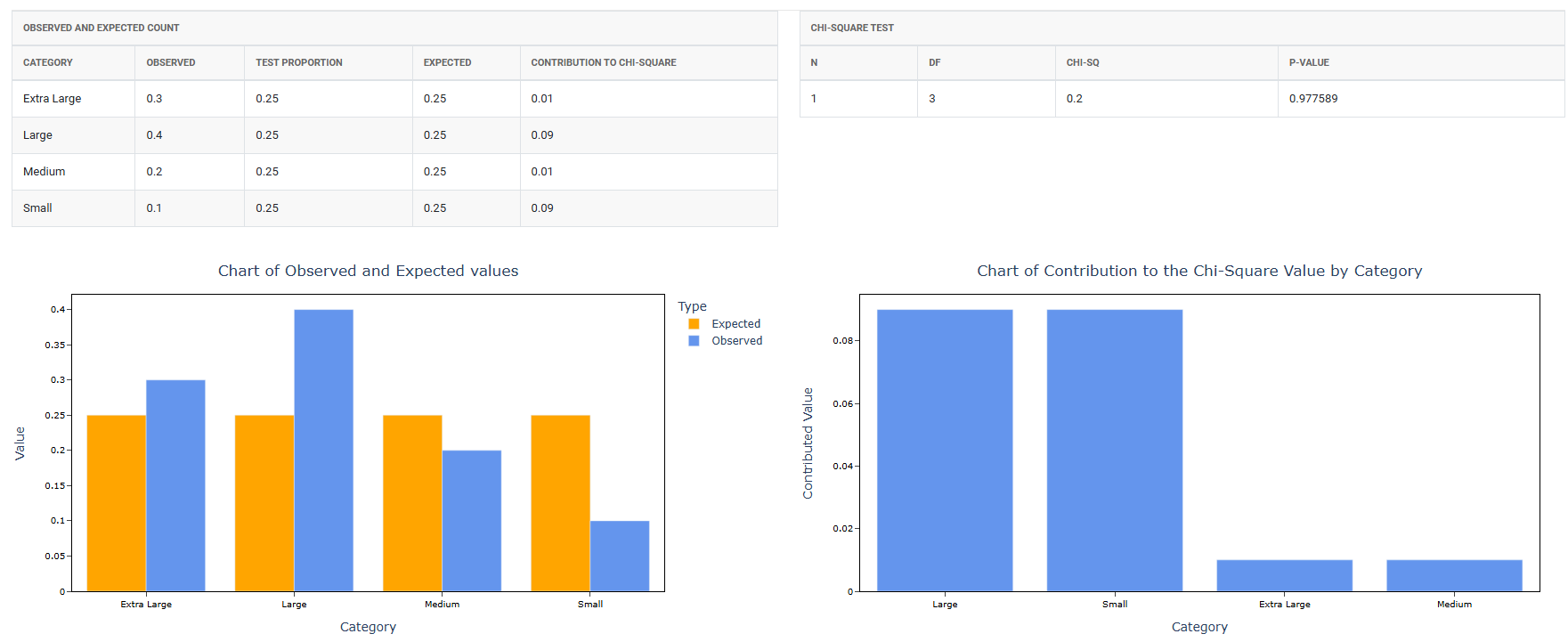
A procurement manager wants to compare the proportion of t-shirts of each size that are sold to the proportion that were ordered. The manager counts the number of t-shirts of each size that are sold in a week. The buyer performs a chi-square goodness-of-fit test to determine whether the proportions of t-shirt sizes sold are consistent with the proportion of t-shirt sizes ordered. The test in following steps:
- Gathered the necessary data.
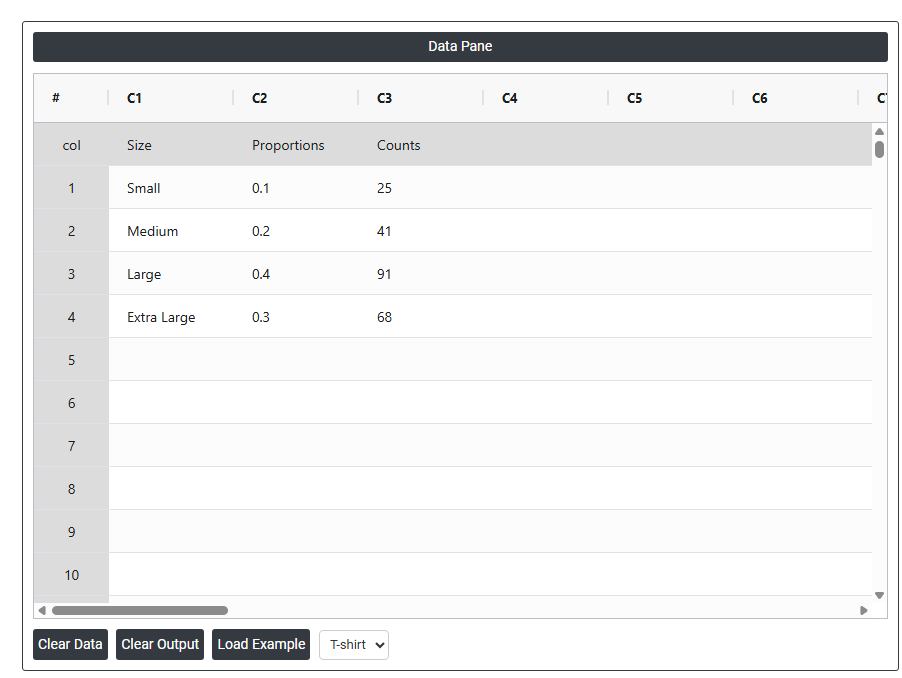
- Now analyses the data with the help of https://qtools.zometric.com/ or https://intelliqs.zometric.com/.
- To find Chi Square Goodness Of Fit choose https://intelliqs.zometric.com/> Statistical module> Hypothesis Test> Chi Square Goodness Of Fit.
- Inside the tool, feeds the data along with other inputs as follows:
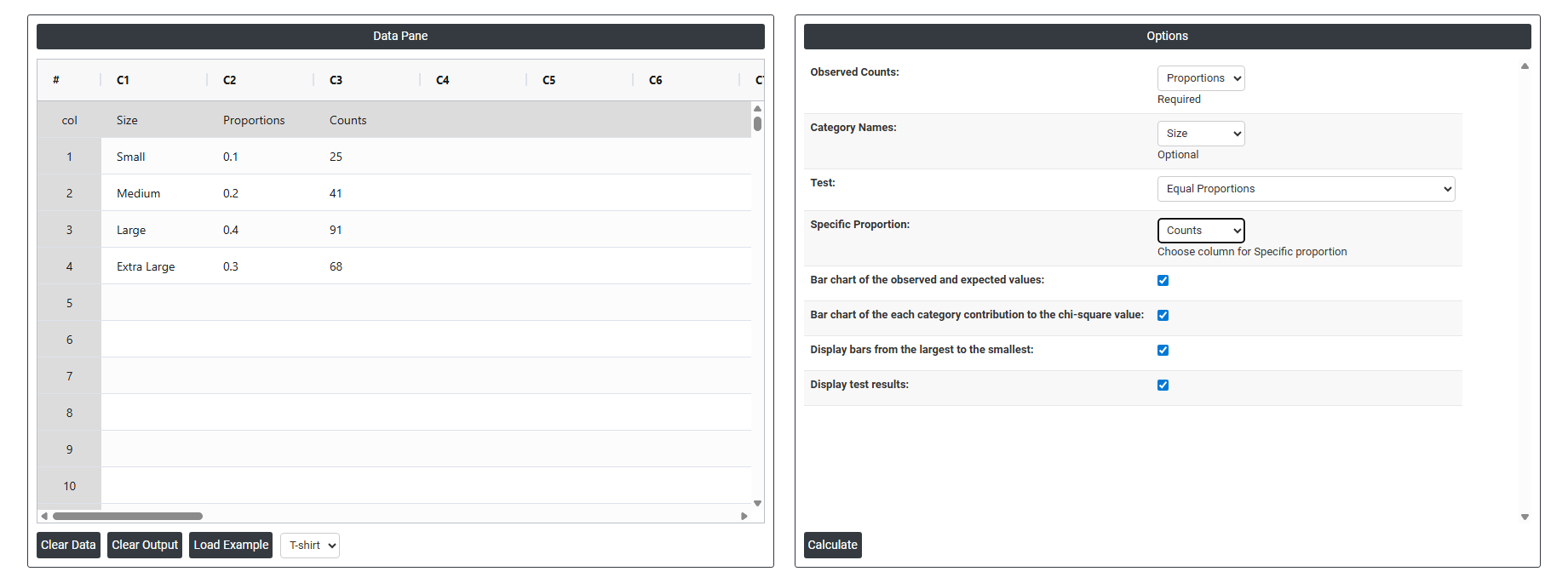
5. After using the above mentioned tool, fetches the output as follows:
How to do Chi Square Goodness Of Fit
The guide is as follows:
- Login in to QTools account with the help of https://qtools.zometric.com/ or https://intelliqs.zometric.com/
- On the home page, choose Statistical Tool> Hypothesis Test >Chi Square Goodness Of Fit .
- Next, update the data manually or can completely copy (Ctrl+C) the data from excel sheet and paste (Ctrl+V) it here.
- Fill the required options.
- Finally, click on calculate at the bottom of the page and you will get desired results.
On the dashboard of Chi Square Goodness Of Fit, the window is separated into two parts.
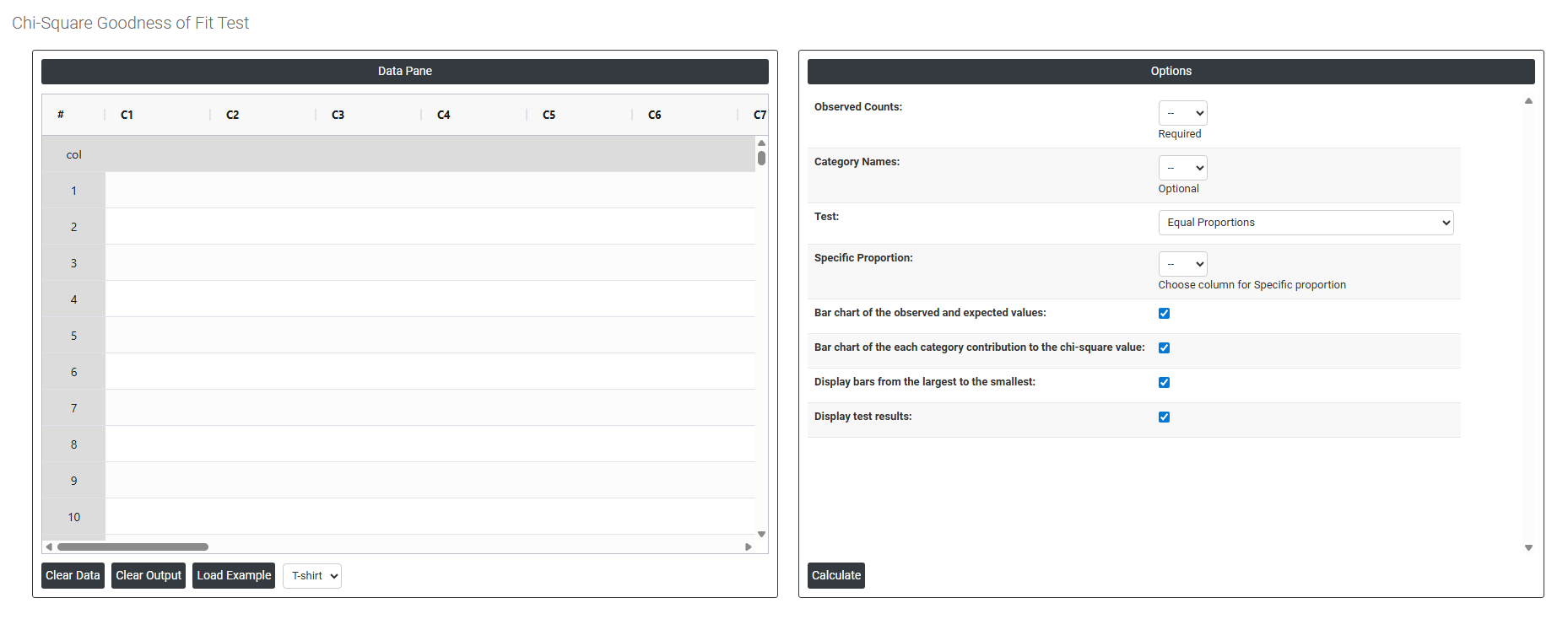
On the left part, Data Pane is present. In the Data Pane, each row makes one subgroup. Data can be fed manually or the one can completely copy (Ctrl+C) the data from excel sheet and paste (Ctrl+V) it here.
Load example: Sample data will be loaded.
Load File: It is used to directly load the excel data.
On the right part, there are many options present as follows:
- Observed Counts Select the column containing the actual counts recorded for each category in your data — for example, the number of defects observed in each shift, the number of customer complaints per category, or the number of occurrences in each group. This is the core input the test uses to compare what actually happened against what was expected. This field is required.
- Category Names; Select the column containing the labels or names for each category — for example, Shift 1, Shift 2, Shift 3, or Scratch, Dent, Tear. This is optional but recommended as it makes the output charts and results table clearly labelled and easier to interpret and present in reports.
- Test: Defines what expected distribution the observed counts are being compared against. Three options are available:
- Equal Proportions — tests whether all categories occur with equal frequency. Use this when your null hypothesis is that each category should appear the same number of times — for example, testing whether defects are equally distributed across all days of the week.
- Specific Proportions — tests whether categories occur at specific, pre-defined proportions that you enter manually. Use this when you have an expected distribution based on theory, historical data, or specifications — for example, testing whether 60% of outcomes fall in Category A, 30% in Category B, and 10% in Category C.
- Properties Specified by Historical Counts (Input Column) — tests against expected proportions derived from a reference column of historical counts rather than manually entered values. Use this when you have a previous dataset or baseline period whose distribution you want to compare your current data against.
- Specific Proportion: Select the column containing the expected proportions or reference counts for each category when using the Specific Proportions or Historical Counts test option. The values in this column define what the distribution should look like under the null hypothesis — each category's expected proportion must correspond in order to the categories in the Observed Counts column.
- Bar Chart of Observed and Expected Values: When enabled, displays a side-by-side bar chart comparing the observed counts against the expected counts for each category. This is one of the most useful visual outputs — it makes it immediately clear which categories have the largest gaps between what was observed and what was expected, helping you pinpoint where the distribution deviates most.
- Bar Chart of Each Category Contribution to the Chi-Square Value: When enabled, displays a bar chart showing how much each individual category contributes to the overall chi-square statistic. Categories with the tallest bars are the ones driving the significant result — this helps you identify exactly which categories are most responsible for the departure from the expected distribution, rather than just knowing that a difference exists overall.
- Display Bars from Largest to Smallest: When enabled, sorts the bars in the charts in descending order from the largest contribution or count to the smallest. This makes it easier to prioritise which categories are most important and focus attention on the biggest deviations first — particularly useful when there are many categories and you want to quickly identify the most significant ones.
- Display Test Results: When enabled, shows the full statistical test output directly on or alongside the chart — including the chi-square statistic, degrees of freedom, and p-value. This allows you to view the visual and statistical results together in one place without needing to refer to a separate output table.